Connecting Your Email Account
Deal Run sends deal marketing emails from your email address using the Gmail API. This is fundamentally different from how most SaaS platforms handle email. Instead of blasting from a shared marketing domain (like deals@someplatform.com), your emails come from your actual inbox -- the same address your buyers already know and trust. This guide explains why this matters, how to set it up, and what to expect.
Why we use your own email
The wholesale real estate business runs on relationships. When a buyer gets an email from you about a new deal, they need to trust that it is real, that the numbers are accurate, and that you are a credible operator. That trust starts with who the email is from.
Deliverability
Emails sent from established personal domains and Gmail accounts have dramatically better inbox placement than emails sent from shared marketing platforms. When you use a service that sends from deals@platform.com, your email is competing with every other user on that platform for domain reputation. One bad actor sending spam degrades deliverability for everyone on the shared domain.
With Gmail API integration, your emails are sent through Google's infrastructure under your own account's reputation. If you have been emailing normally from your address for months or years, that reputation carries over to your deal blasts. Your emails land in the inbox, not the promotions tab or spam folder.
Trust and recognition
Buyers recognize your email address. When "john@johndoeproperties.com" sends a deal blast, the recipient sees a name and domain they have interacted with before. When "deals@platform.com" sends that same blast, the recipient sees an unfamiliar sender and is more likely to ignore it, delete it, or mark it as spam.
Replies also come back to your inbox. If a buyer hits reply to ask about a deal, that reply lands in your Gmail where you will see it immediately and can respond naturally. No platform dashboard to check, no notifications to miss.
No cold domain warmup
Shared marketing platforms typically need to "warm up" their sending domain by gradually increasing volume over weeks to establish reputation with email providers. This means your first campaigns may have poor deliverability while the domain builds trust. With Gmail API, there is no warmup period. Your account already has an established reputation. You can send your first deal blast on day one with full deliverability.
Setting up Gmail integration
Deal Run sends your test emails and buyer blasts from your own Gmail. Here's every screen you'll see when you connect it. It takes about a minute, and you only do it once.
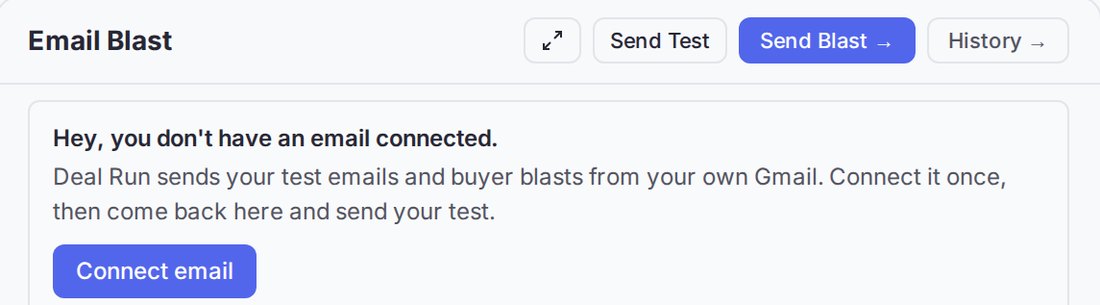
Click Connect email
You'll find it on the Email Blast panel of your deal's Package step, or under Account → Integrations.
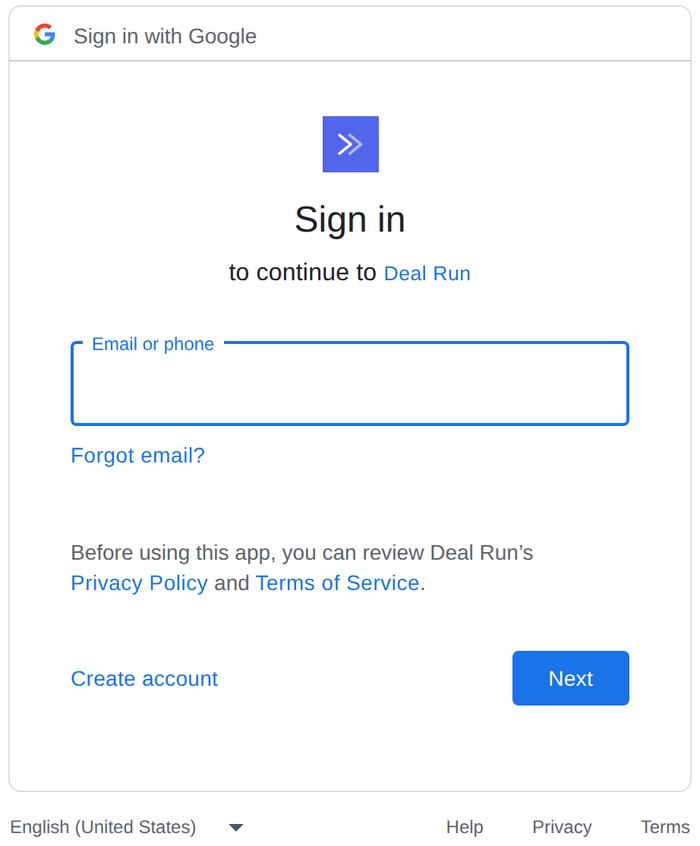
Sign in to Google
If you aren't signed in to Google in this browser, Google asks for your email first. Use the Gmail address you want your deal emails to come from.
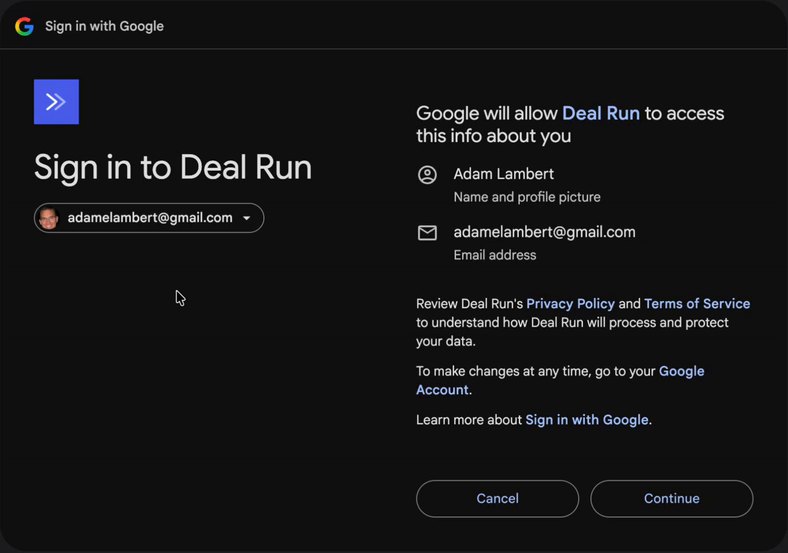
Pick your account
Google shows Sign in to Deal Run with your account. Deal Run only sees your name, email address and profile picture here. Click Continue.
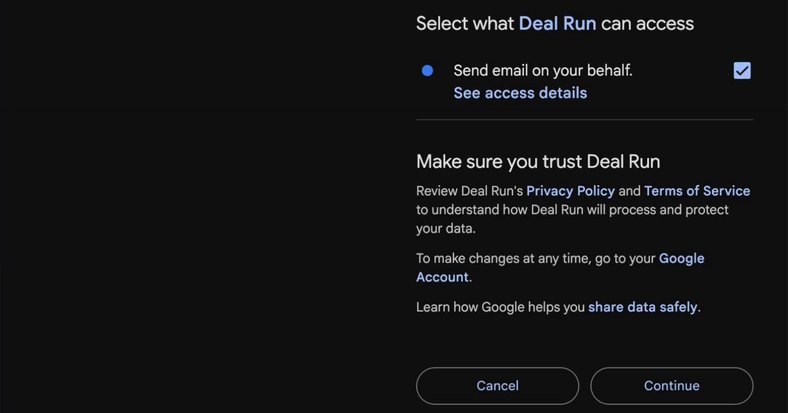
Google's screens follow your browser's light or dark setting. Allow sending
Google asks what Deal Run can access. Leave Send email on your behalf checked and click Continue. That's the only permission Deal Run asks for.
You're connected
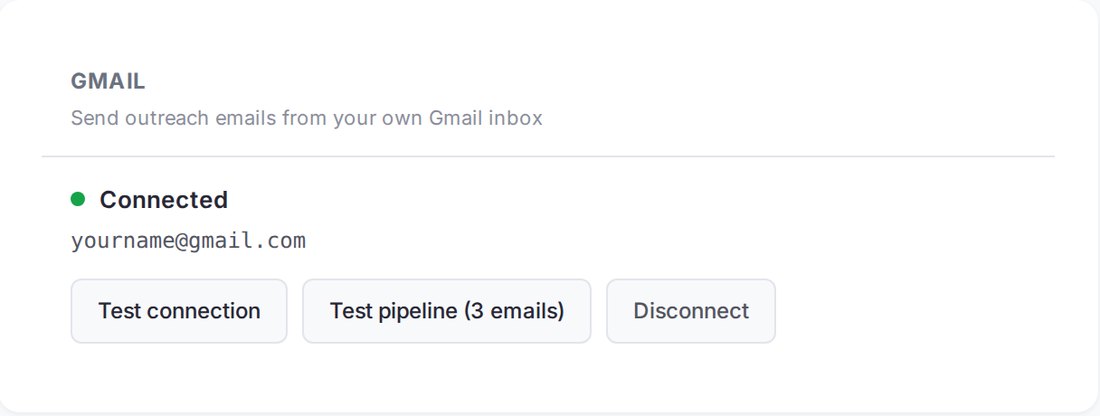
Google sends you back to Deal Run, which shows Connected and your Gmail address.
Send yourself a test
Click Test connection, or Send Test on the Email Blast panel. A test email lands in your Gmail inbox, sent from your own address.

What Deal Run can do with your Gmail: Deal Run can only send the emails you start. It can't read your inbox.
Outlook, Yahoo or iCloud address? Those can't connect. Use a Gmail address (a free one works).
What Deal Run can and cannot do with your Gmail
Transparency matters. Here is exactly what the integration does and does not do:
What Deal Run does
- Sends emails you initiate. When you click "Send Blast" on a deal campaign, Deal Run composes the email using your selected template and recipient list, then sends it via the Gmail API on your behalf. You always control when emails are sent, to whom, and with what content.
What Deal Run does not do
- Read your personal emails. Your personal inbox, sent mail, drafts, and conversations with other people are never read.
- Send emails without your action. Every email requires you to review the content, confirm the recipient list, and explicitly click send. There are no automated emails sent on your behalf without your initiation.
- Share your email credentials. Deal Run uses OAuth tokens (not your password) to access Gmail. You can revoke this access at any time from your Google account settings without changing your password.
- Modify or delete your emails. Deal Run has send access only. It cannot move, delete, archive, or label any of your emails.
Sending your first deal blast
Once your Gmail is connected, sending a deal blast works like this:
- Navigate to a deal and open the "Sell" section or click "Send Blast" from the deal detail page.
- Choose a template -- Deal Run provides pre-designed deal blast templates with your property photos, specs, pricing, and a call-to-action button that links to your marketing page.
- Select your audience -- choose from your buyer list, filtered by location, budget, strategy preference, or tags. The recipient count updates in real time as you adjust filters.
- Preview the email and send a test to yourself to verify formatting.
- Click "Send Blast" to send to your entire selected audience.
Emails are sent individually (not as a mass CC/BCC) so each buyer receives a personal email that appears to be sent directly to them. This dramatically improves open rates compared to BCC blasts.
Gmail sending limits
Google imposes daily sending limits on Gmail accounts to prevent spam abuse. These limits apply to all emails sent from your account, including those sent through Deal Run:
- Personal Gmail (@gmail.com): approximately 500 emails per 24-hour rolling period
- Google Workspace (custom domain): approximately 2,000 emails per 24-hour rolling period
If you are blasting large buyer lists, the Google Workspace limit of 2,000 per day is usually more than sufficient. Most wholesalers blast 100-500 buyers per deal. If you hit the limit, remaining emails are queued and sent as your limit resets.
For very large lists, Deal Run automatically paces the sending to stay within Google's rate limits. You do not need to manually split your list or schedule batches -- the system handles throttling automatically.
Revoking access
You can disconnect your Gmail from Deal Run at any time:
- From Deal Run: Go to Account > Email Integration and click "Disconnect."
- From Google: Visit myaccount.google.com/permissions, find Deal Run in the list of connected apps, and click "Remove Access."
Revoking access is immediate. Deal Run will no longer be able to send emails from your account. Any emails already sent remain in your sent folder -- they are not deleted or recalled.
Google Workspace vs personal Gmail
Both work with Deal Run, but Google Workspace accounts have meaningful advantages for wholesale professionals:
- Custom domain -- buyers see john@acmeinvestments.com instead of john.doe.investing@gmail.com
- Higher sending limits -- 2,000 vs 500 per day
- Professional impression -- custom domains signal legitimacy to buyers who may be evaluating whether to do business with you
- Admin control -- if you have a team, workspace lets you manage access centrally
Google Workspace starts at $7.20 per user per month -- a worthwhile investment if you are sending deal blasts regularly. You can set up a workspace account at workspace.google.com.
Troubleshooting
OAuth popup does not appear
Some browsers block popups by default. Check for a popup-blocked indicator in your address bar and allow popups from dealrun.ai. On Safari, check Settings > Safari > Block Pop-ups.
Workspace admin has restricted third-party apps
If you are on a Google Workspace account managed by your organization, the admin may have restricted which third-party apps can access Gmail. Ask your workspace administrator to approve Deal Run in the Google Admin Console under Security > API controls > App access control.
Emails going to spam despite using Gmail
This is rare with Gmail API integration but can happen if: (1) you are emailing addresses that have never received mail from you before, (2) your email content triggers spam filters (excessive capitalization, spammy phrases like "ACT NOW"), or (3) recipients are manually marking your emails as spam. Use professional, concise templates and always include an unsubscribe link.
For more on building effective deal marketing emails, see the outreach section of the Help Center. For a full list of supported third-party tools, see integrations.